01
Set up your account
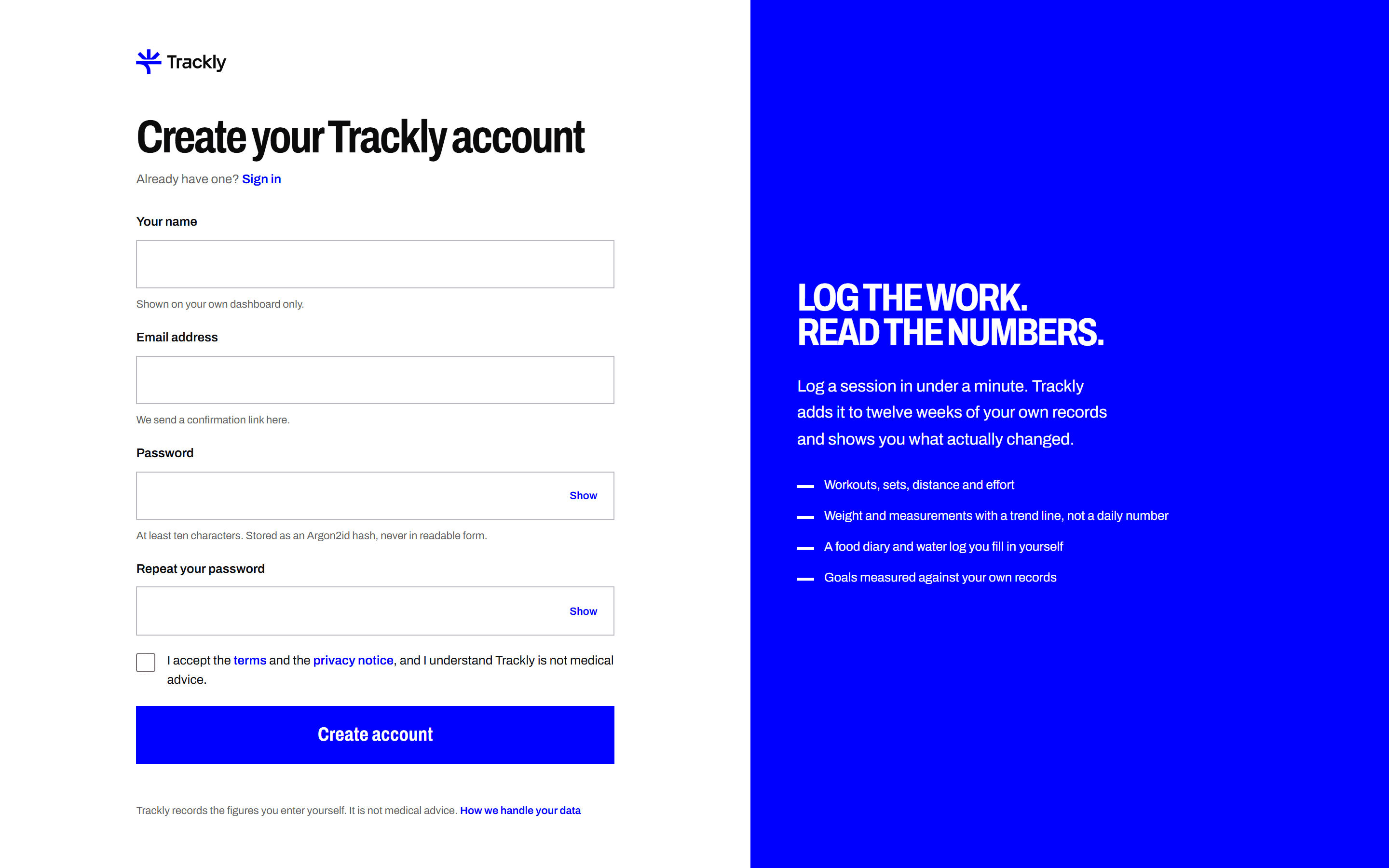
Sign up with an email address and a password. Choose your units and time zone, and pick what you want to track. You can change all of it later.
Four steps from a new account to a training record you can actually compare week to week.
Sign up with an email address and a password. Choose your units and time zone, and pick what you want to track. You can change all of it later.
Record workouts, meals, drinks and measurements as you go. Every entry is dated and saved to your account, so the record does not depend on memory.
Trackly works out weekly totals, personal bests and your weight trend from the entries you saved. Each chart states its units and its date range.
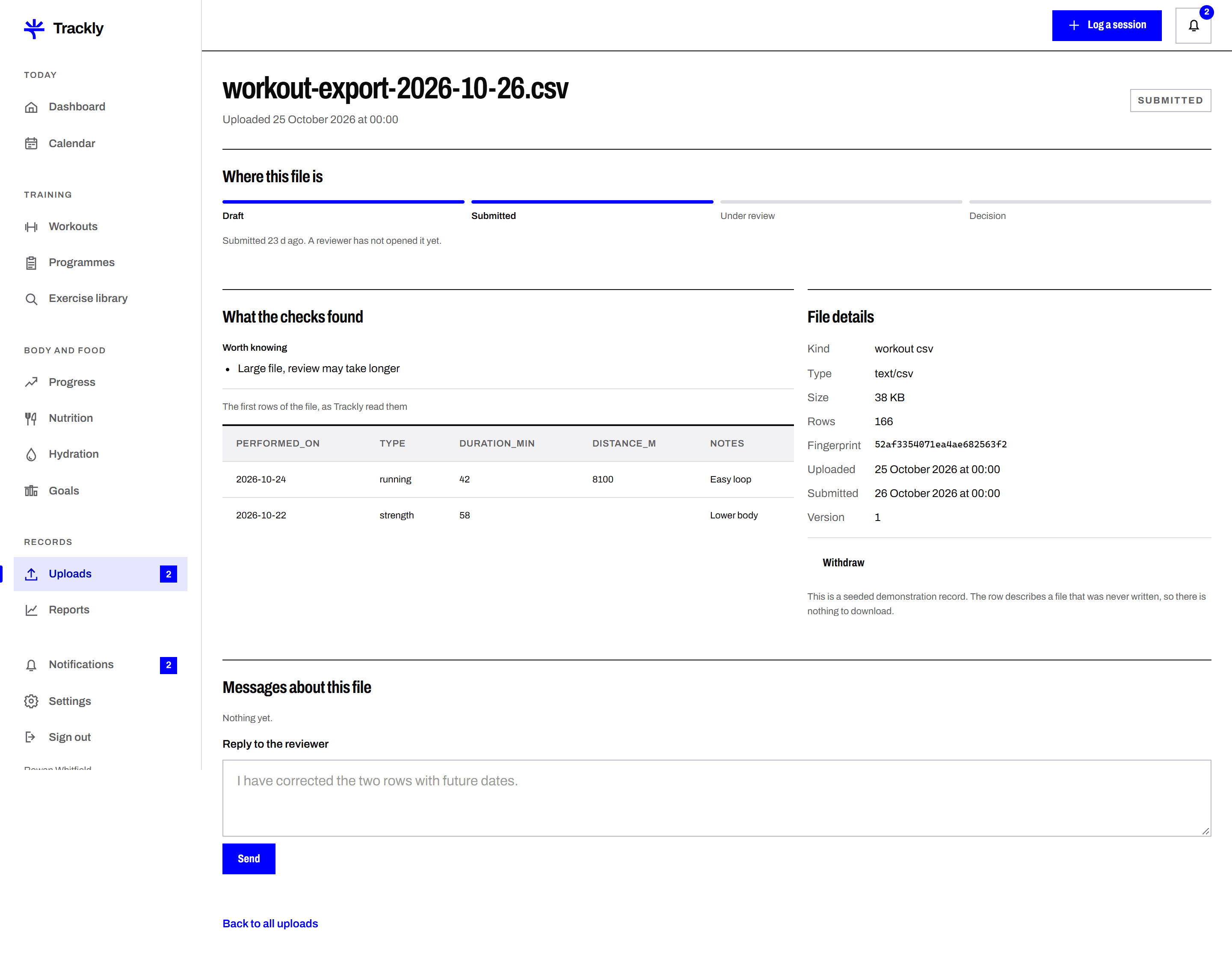
Upload a CSV, a JSON export or a progress photo. A reviewer on the Trackly team checks it and marks it approved, rejected or needing changes.
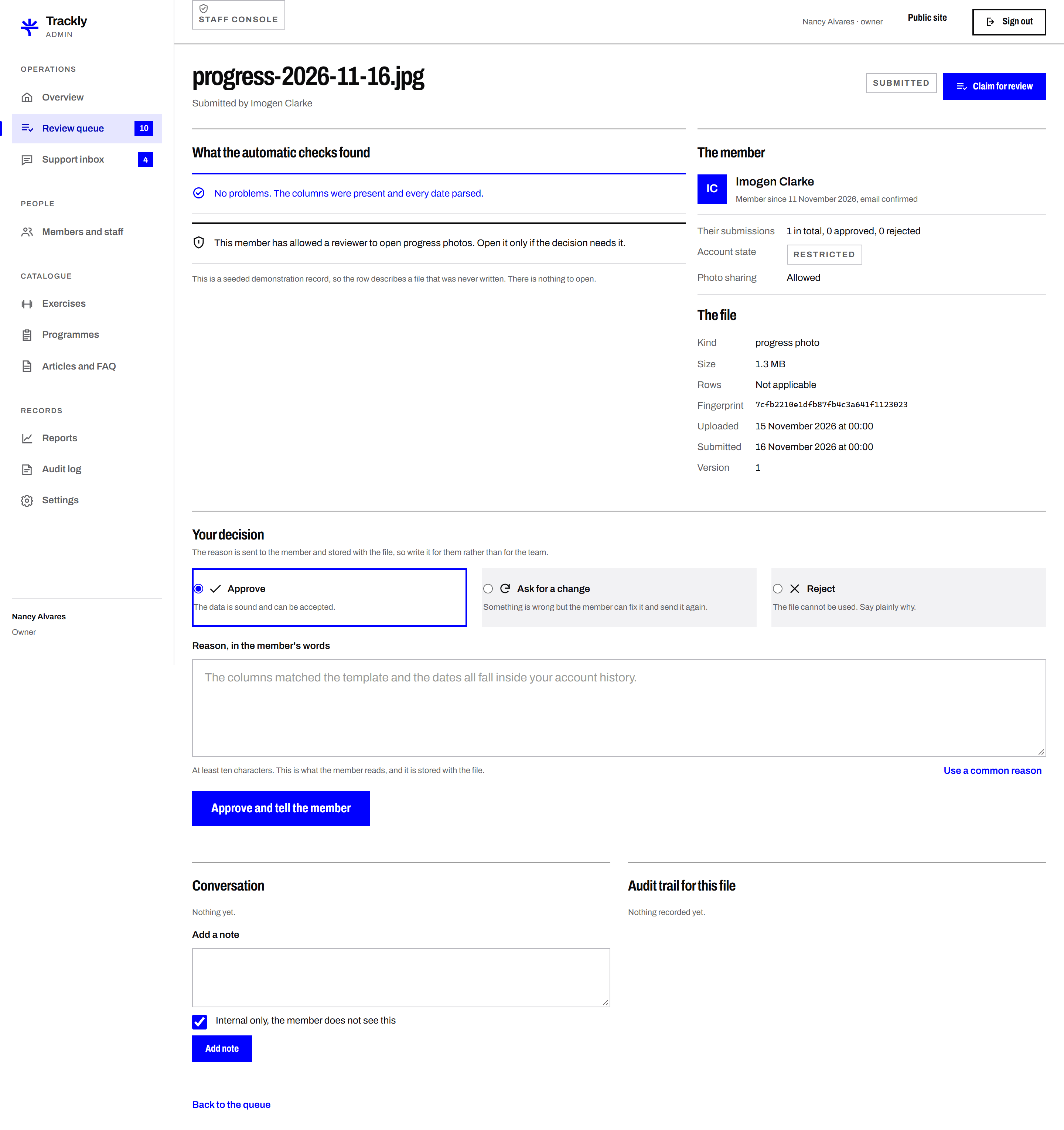
Each picture below is the real screen, captured from the running application against demonstration records.
An email address, a name and a password of at least ten characters. The password is stored as an Argon2id hash, so nobody can read it back, including the Trackly team. A confirmation link is sent to the address you gave.
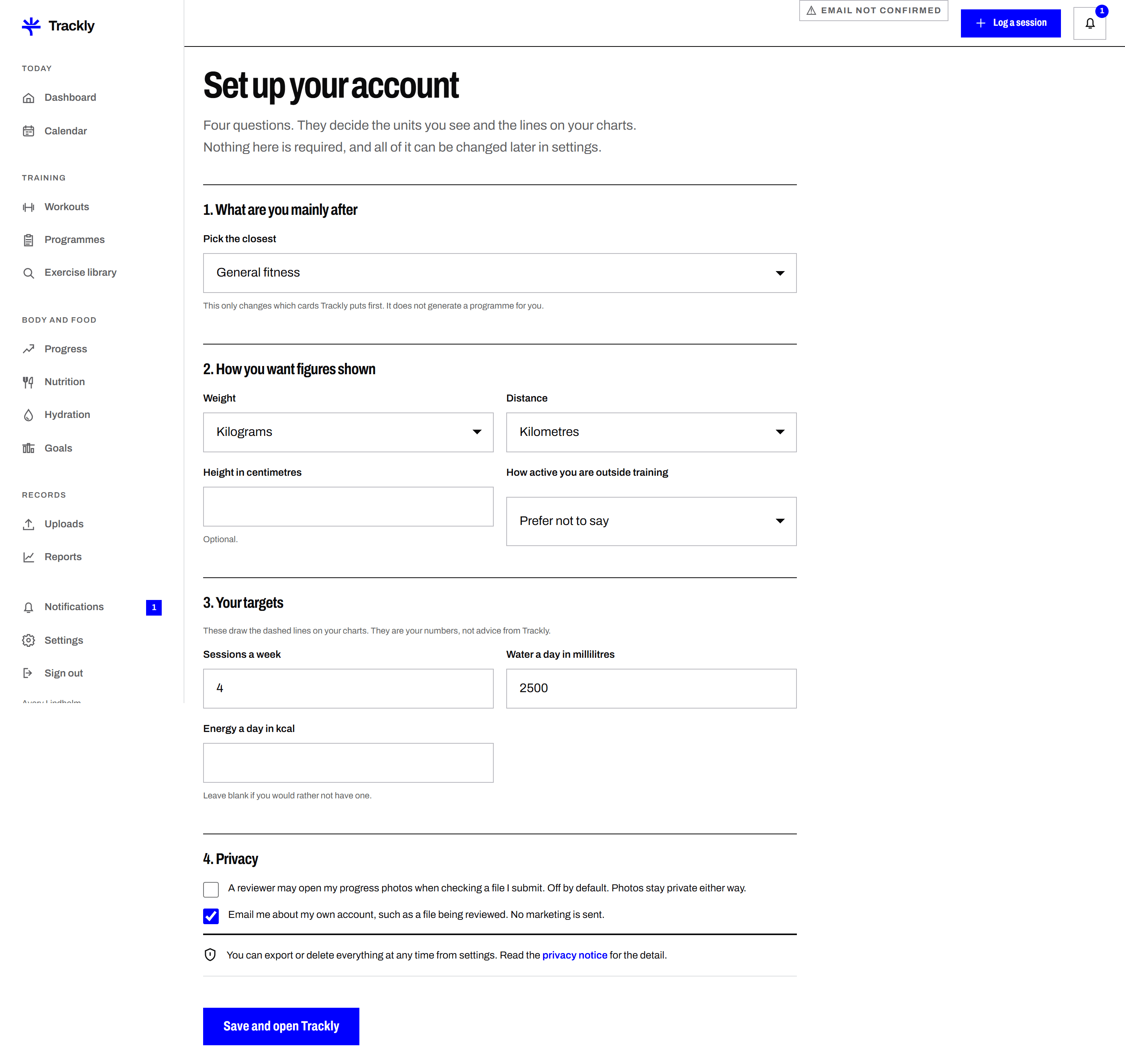
Units, a weekly session target, a water target and whether you want a calorie target. These draw the dashed lines on your charts. They are your numbers, and every one of them can be changed later or left blank.
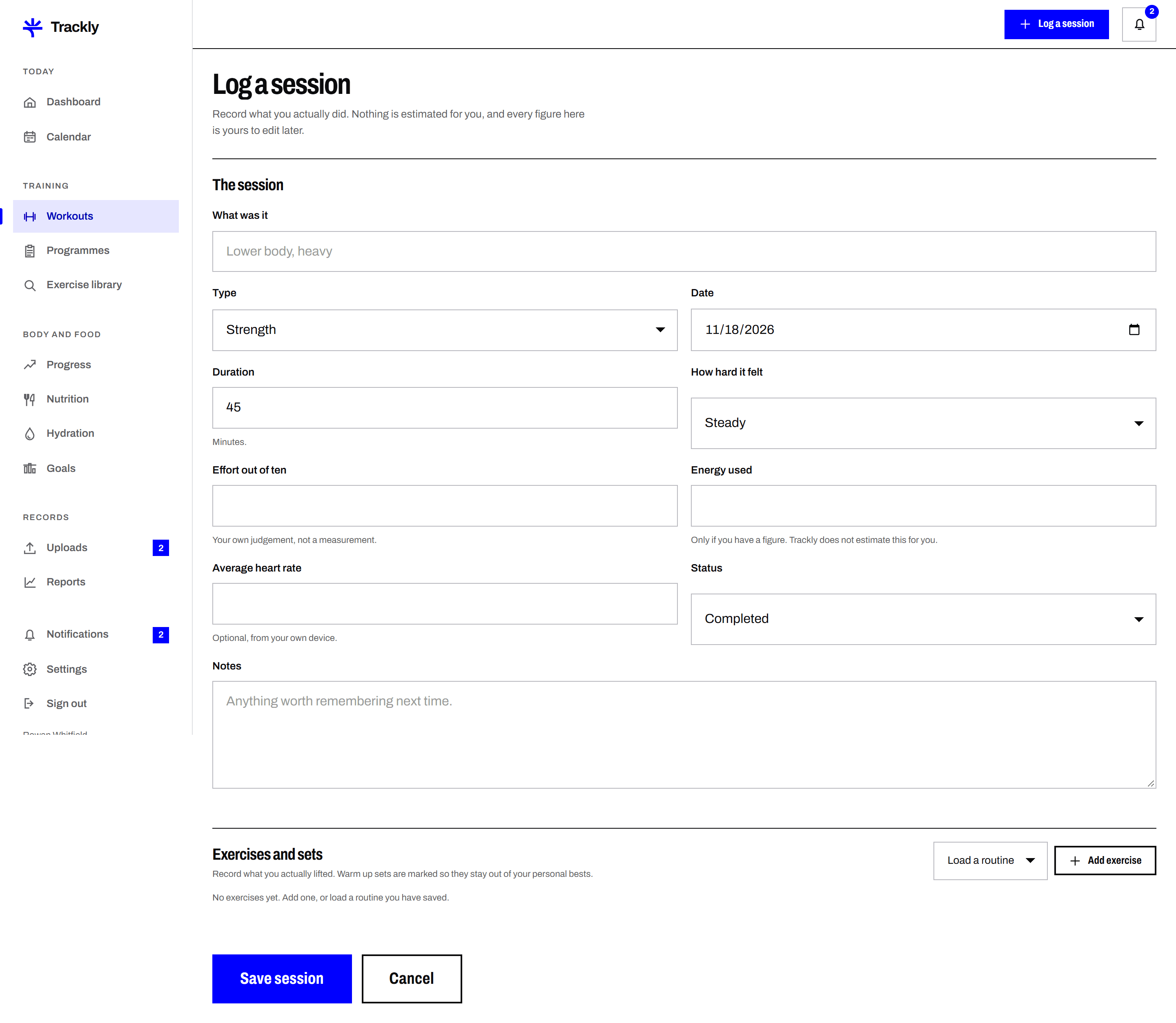
Pick the type, the date and how long it took. For strength work, add exercises and then the sets as you lifted them, marking warm up sets so they stay out of your personal bests. It takes under a minute once the routine is saved.
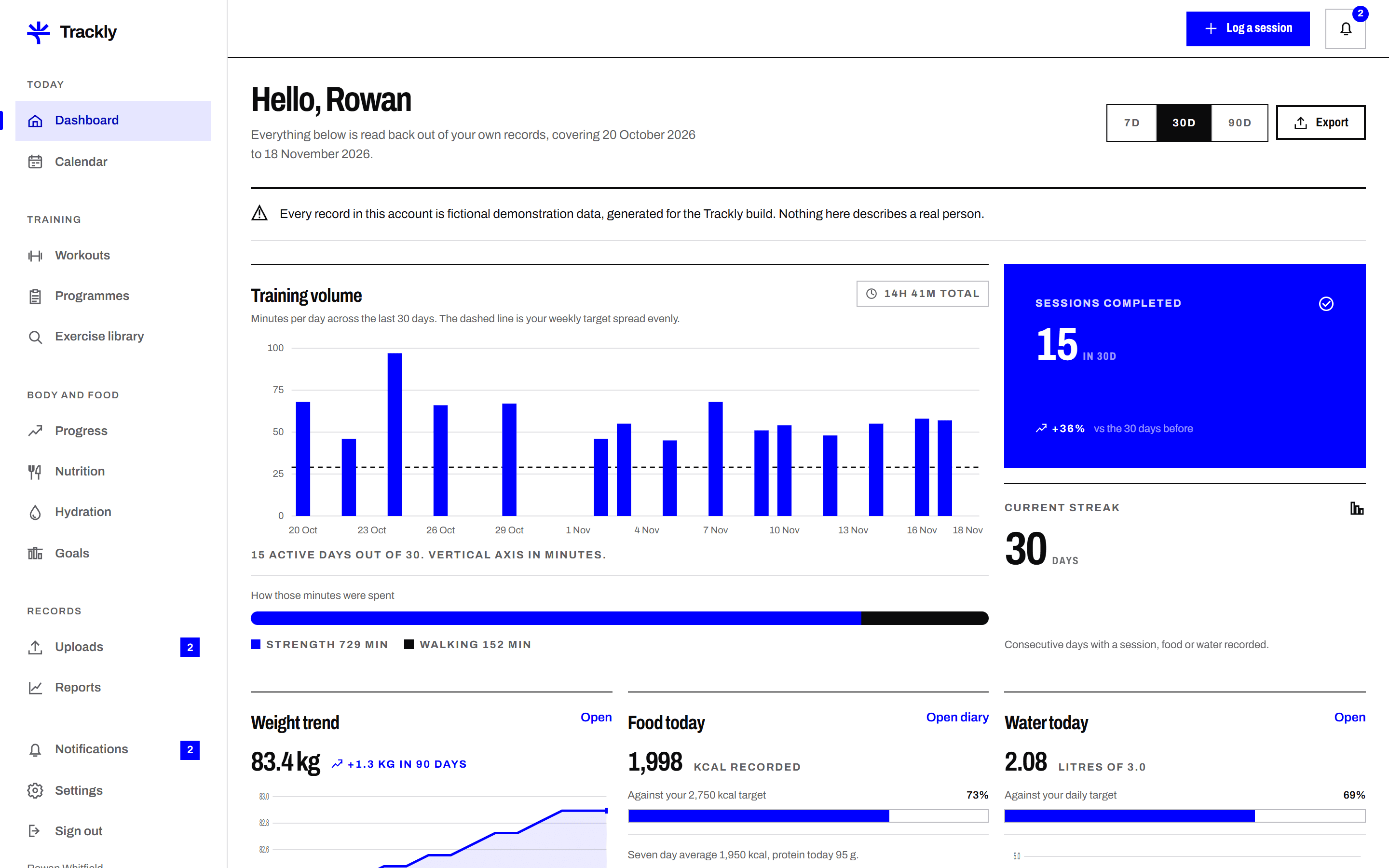
The dashboard adds up the rows you have entered for the window you pick. Nothing is stored as a dashboard number, so editing a session changes every figure that reads it, including the CSV you export.
Ordinary logging never needs anybody's approval. The review workflow is only for files exported from another app, and for progress photos, where a person checks the data before it is accepted as verified.
You upload a file. Trackly checks the columns and the dates and tells you what it found. Nothing has been sent to anybody.
You send it. The file joins the review queue and you get an email confirming it arrived.
A reviewer claims it. Claiming is a conditional update, so two reviewers cannot both take the same file.
The data is sound. The reviewer writes why, and that reason is sent to you and kept with the file.
Something is wrong but fixable. You correct the file and submit it again, and the version number goes up.
The file cannot be used. The reason says plainly what was wrong.
Feature
Record a training session the way you actually did it. Date, duration, exercises, sets, reps, weight, intensity and notes. Trackly keeps the detail so
Feature
Weight, body measurements and optional progress photos, entered in your own units and plotted over time. Trackly shows the trend beside the daily figu
The dashboard fills in from the first thing you record. Twelve weeks later it shows you something a single entry never could.
Create an account